
Flying FPV drones is one of the coolest hobbies you can have.
When you add a GoPro to your drone, your flights become even more special: the camera turns everything into a high-quality, cinematic experience. You can capture smooth shots, fast movements, and amazing landscapes in a way that feels like you’re really inside the drone.
A lot of beginners ask me the same thing: “Can you use GoPro for FPV?” Yes, absolutely—you can use a GoPro for FPV, and it’s actually the most popular action camera in the FPV world.
I’m MaikFPV and after spending a lot of time flying, crashing, learning, and improving, I’ve tested many ways to get better footage from my flights.
In this guide, I want to share everything I’ve learned in a simple and clear way, so you can start getting amazing results too. In this article, I’ll explain how to use a GoPro on your FPV drone, how to mount it safely, the best FPV GoPro settings, and some pro tips to get amazing footage every time.
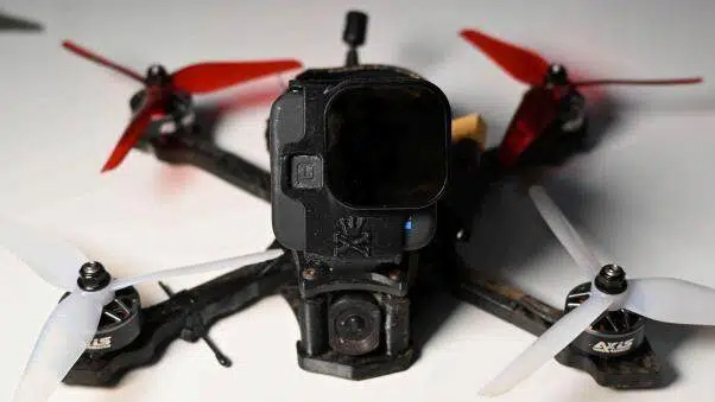
Can You Use GoPro for FPV?
Yes, absolutely! You can use a GoPro for FPV drones, and it’s one of the best and most common cameras pilots use to record their flights. The one above it’s my setup!
It’s easy to set up your camera, it gives you great video quality, and it works well in almost every flying situation.
Whether you’re flying:
- freestyle (juicy, fast, and acrobatic)
- cinematic cruising (smooth low-angle lines, mountains, buildings)
- long-range (7” rigs, cruising for kilometers)
- cinewhoops (indoor shoots, tight spaces, close-proximity flying)
A GoPro handles all of it extremely well. The colors, sharpness, dynamic range, and stabilization options make it the go-to camera for FPV drones.
Why FPV Pilots Prefer GoPro?
Here’s why a FPV drone + GoPro setup works so insanely well:
- Best image quality in FPV: Even older GoPros deliver better clarity and dynamic range than most action cameras.
- Great stabilization options
- Built-in HyperSmooth
- Or disable it for Gyroflow (preferred for cinematic FPV)
- Durable enough to survive crashes: GoPros have solid internals, metal lens rings, and good shock resistance—essential when flying a 5″ that sometimes drops out of the sky at 100 km/h.
- Wide community support: Thousands of FPV drone GoPro mounts, ND filters, cases, mods, and presets already exist.
- Consistent results: No matter the weather or flying scenario, GoPros deliver predictable and usable footage.
So yes, not only can you use a GoPro for FPV—it’s the standard.
Best FPV Drone GoPro that Many Pilots Like
Many FPV pilots use models like:
- GoPro Hero 9/10/11/12/13: perfect for FPV if you’re looking for a good quality camera, but a bit heavier.
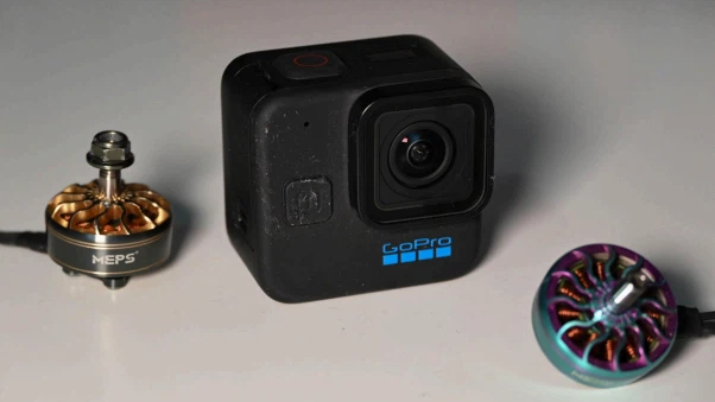
- GoPro Hero Session/11 Mini: I personally use these because they are lighter and are perfect for freestyle, while still having good quality.
- GoPro Hero 8 or older: still great quality, and you can find them for a low price on the market.
- Naked GoPro: a custom version made lighter by removing the case (used on smaller drones like 3″ or 4″ cinewhoops, especially for cinematic use)
If you want to know more best GoPro for FPV drone, please check the blog on How to Choose the Best GoPro for FPV Drone?
There is also a blog about the FPV camera: Best FPV Drone Camera: Top 8 Factors
How to Mount GoPro to FPV Drone?
Mounting your GoPro properly is one of the most important parts of getting smooth footage. Even the best settings can’t fix the shake from a bad mount.
Let’s go step-by-step!
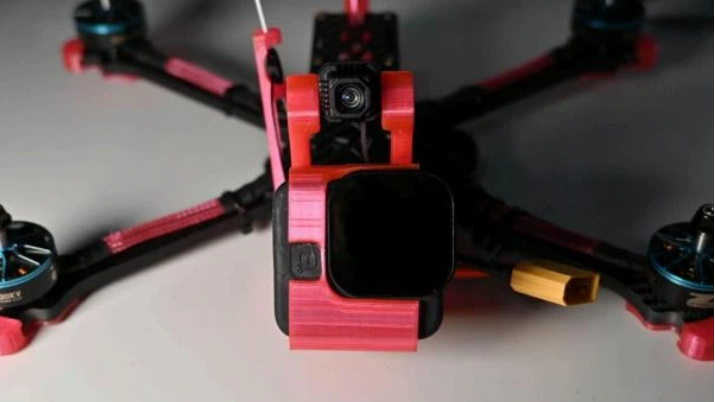
Step 1. Choose the Right Mount
Most FPV pilots use 3D-printed TPU mounts because they’re flexible, vibration-absorbing, and much more crash-resistant.
Why TPU is ideal:
- Impact-resistant
- Slightly flexible (absorbs jello)
- Doesn’t shatter on impact
- Holds the GoPro firmly during high-G maneuvers
Make sure you DON’T USE PLA or PETG for your GoPro mount because these materials are too rigid and can easily break during a crash, which could also put your camera at risk.
You can find thousands of free FPV drone GoPro mount designs on:
- Thingiverse
- MakerWorld
- Cults3D
As you can see from above, I usually prefer to use 3D Printed Mounts. If you have a 3D Printer, they’re cheap and you can customize them as much as you want.
Step 2. Align the Camera Angle
Your GoPro angle depends on your flying style:
- Freestyle: 25°–35°
- Racing: 40°–50°
- Cinematic cruising: 10°–20°
You can test this by tilting the camera on your drone while wearing goggles: you have to line up the horizon until it looks right for your speed.
Step 3. Secure the Mount Properly
- Use M3 screws or zip ties through the base to hold the mount on the frame.
- If you want extra security, wrap a battery strap around the GoPro too.
- Wrap the GoPro lens with a thin TPU bumper
Best GoPro Settings for FPV Drone
Getting good GoPro footage from an FPV drone isn’t just about strapping the camera on top and hitting record. FPV flying is fast, dynamic, and full of sudden movements—so your FPV GoPro settings matter way more than they would on a regular action camera shoot.
After hundreds of flights and testing every combination possible, these are the recommended FPV GoPro settings that most pilots and I use.
Resolution and Frame Rate
Your FPV drone moves fast, so you need a mix of sharp detail + smooth motion.
Recommended GoPro FPV Resolutions:
| Use Case | Best Setting | Why |
| Cinematic / Long-range | 5K 30fps | Highest detail, great for landscapes |
| Freestyle / General FPV | 4K 60fps | Sharp + smooth, perfect balance |
| Slow-motion tricks | 2.7K 120fps | Beautiful slow-mo powerloops & dives |
| Longer recordings / battery saving | 1080p 60fps | Smaller files, easier processing |
Most FPV pilots fly with 4K 60fps — it’s the sweet spot.
Field of View (FOV)
For the Field of View (FOV), I suggest using:
- SuperView for freestyle to not miss any gap, or for cinematic if you’re going to use Gyroflow then.
- Wide or Wide + Linear to remove fisheye effect (good for “ready-to-go” cinematic shots)
- Linear for “already cinematic” in-camera footage due to the straight lines staying straight.
Many FPV pilots love SuperView or Wide, then stabilize in Gyroflow later for the cleanest result.
Shutter, ISO, White Balance
These matter more for FPV GoPro footage than people think. To keep footage clean and smooth, I suggest putting:
Shutter Speed
Shutter = 2 × FPS
Examples:
- 60fps → 1/120
- 30fps → 1/60
This gives natural motion blur.
But—and this is critical—If you don’t use ND filters, leave Shutter on Auto. Otherwise your footage will be blown out.
ISO
Lowest that you can (low light = higher ISO but more noise).
Anything higher adds noise, especially during fast freestyle moves.
Recommendation:
- Daylight: ISO 100–200
- Cloudy: ISO max 400
White Balance
Native or 5500 K for sunny days. This helps keep colors consistent for color grading.
ND Filters
Most pilots underestimate how important ND filters are.
If you want cinematic FPV footage, you should use them.
ND Guide:
- ND8: cloudy days
- ND16: sunny days
- ND32: bright beaches/snow
Effects of ND filters:
- smoother motion blur
- no jittery frames
- balanced exposure
- cleaner Gyroflow stabilization
Keep in Mind: If you don’t use an ND filter, your GoPro will crank up the shutter speed, and your footage will look choppy.
I always use ND filters because I love the look they give to my footage: smoother motion blur, more natural movement, and that cinematic feel you simply can’t get with a fast shutter.
Stabilization
You have two options:
- NO Stabilization: I don’t use it for freestyle because fast moves make the stabilization work badly
- HyperSmooth ON: built-in GoPro stabilization, works fine, but crops the image a bit
- Gyroflow: disable HyperSmooth, use gyro data to stabilize later in editing (used by other pilots and me for smoother results in cinematic shots)
Other Settings
- Sharpness: Low or Medium to keep footage natural
- Color: Flat (if your GoPro supports it) to better color grade later
- Bitrate: High it gives you more details but bigger files
These Are My Real-World FPV GoPro Settings
Freestyle
- 4K 60fps
- SuperView
- Shutter Auto (with ND)
- ISO 100–400
- Color: Flat
- HyperSmooth OFF (Gyroflow later)
Cinematic cruising
- 5K 30fps or 4K 60fps
- Wide / Linear
- ND16
- Shutter 1/60 or 1/120
- ISO 100–200
- Gyroflow stabilization
Indoor cinewhoop
- 2.7K 60fps
- Wide or Linear
- Shutter Auto
- ISO 400
- HyperSmooth ON (easy and reliable)
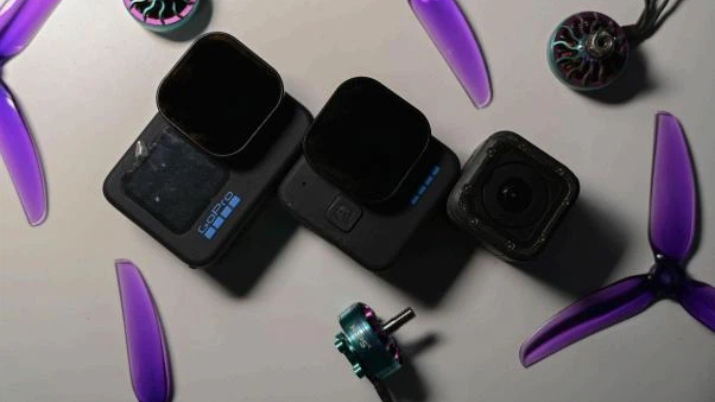
If you’re interested in the motor shown in the picture, you can click on the image below to view more information about it.

How to Power the GoPro on FPV Drones?
Most FPV pilots power their GoPro directly from its own internal battery, not from the FPV drone. This is the safest and most reliable method because FPV quads can introduce voltage spikes that may damage the camera.
3 Ways to Power a GoPro on FPV Drones:
Internal Battery
The easiest way: just use the GoPro’s own battery.
- Plug in the GoPro normally and record as usual.
- Most reliable option for freestyle, cinematic, and long-range flights.
- Works with any FPV drone GoPro mount without extra wiring.
- Avoids ESC-induced noise and voltage ripple.
I personally use this because on the GoPro Hero 11 Mini, I can’t remove the battery, and I don’t care about the weight because I mostly use 5 inch or 7 inch drones.
Use a “Naked GoPro” with Powered BEC
For tiny whoops and sub250g FPV builds, pilots remove the GoPro shell, screen, and battery to create a Naked GoPro, which weighs around 20–30g.
You then power it using:
- 5V–9V BEC on the flight controller,
- or a dedicated Naked GoPro regulator board.
Good for:
- Cinewhoops
- Toothpicks
- Sub250g cinematic builds
Warning: Naked GoPros are fragile. Use them only if weight savings are absolutely required.
Directly Power a Full-Size GoPro from the Quad (Not recommended)
Some pilots tap 5V or 12V from the FC to power the GoPro without its battery.
This is risky because:
- ESC voltage noise can fry GoPro electronics
- Sudden brownouts can corrupt footage
- Less safe in crashes
Use only if your FC has a stable, filtered, dedicated camera power rail.
How to Get the Smoothest FPV Footage?
Even with the best settings, you need to fly smoothly to get cinematic shots. Here’s how:
Adjust Camera Mount Angle
A too-high camera angle makes the footage look like it’s pointing at the sky; too low looks slow and flat.
Try 25一30° for freestyle and 20° for cinematic flying.
I personally use 25° for both.
Use ND Filters
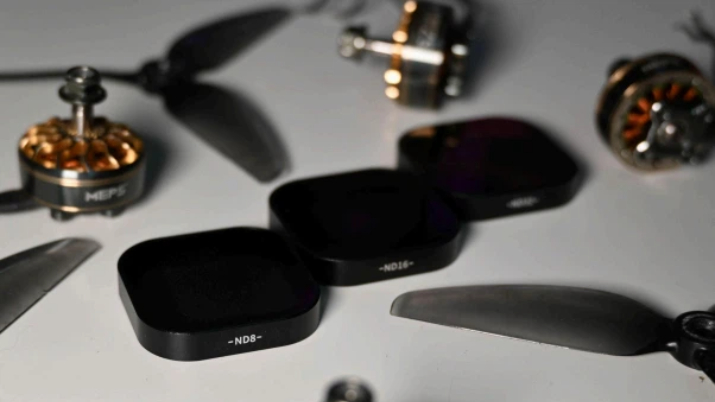
ND filters reduce light and help the camera keep a steady shutter speed, which gives that smooth “motion blur” look.
- ND8 for cloudy days
- ND16 for sunny days
- ND32 for bright beach or snow
Keep in mind to always tighten ND filters properly because they can fall off in a crash or due to lots of vibrations.
Pro Tips for Flying FPV with GoPro
Here are some small tips that I use that can help you make a huge difference:
Balance Your Quad after Adding the Camera
A GoPro adds 120–160g to the front of a 5-inch FPV drone.
To maintain handling:
- Use a well-designed FPV drone GoPro mount
- Shift the battery slightly backward
- Re-tune your PID profile if needed
A balanced drone flies smoother and produces cleaner footage.
Protect Your GoPro
Crashes happen! I recommend protecting your camera like me:
● Use a TPU mount that is also a good cover for the GoPro
● Use a safety ziptie (make the camera very firmly attached to the frame)
Start Recording before Plugging in the Quad
This ensures:
- Your GoPro gyro syncs properly
- ReelSteady/Gyroflow works later
- You avoid desync issues caused by powering cycles
A habit that saves a lot of ruined footage.
Sync Gyro Data
If you plan to use Gyroflow, make sure your GoPro supports gyro data logging. Models that I have, like Hero 10 and 11 Mini, work really great.
● After the flight, import the MP4 into Gyroflow
● Load your camera preset
● Apply stabilization
● Export smooth footage
Check SD Card Speed
Before recording, check that your SD Card “supports” your settings well.
When buying one, look for at least:
- High sustained write speed (90 MB/s or higher)
- V30 (Video Speed Class)
- Large enough capacity (64 GB or more) to handle large files
- Genuine card (avoid counterfeits)
These features will help ensure your card can keep up with your recording settings without issues.
Try “Naked GoPro” for Small Drones
If your drone is small (sub-250 g or cinewhoop), consider using a naked GoPro (a stripped-down version without a case).
You can buy ready-made ones (GoPro Bones) or build one yourself using a “naked GoPro kit.”
Editing FPV Drone GoPro Footage
Once you’ve landed, it’s time to make your video look amazing.
This is what I recommend and what I use:
Stabilization (if not using HyperSmooth)
Use Gyroflow:
- Import your video
- Choose your camera preset
- Adjust smoothness
- Export and Enjoy
Import the video into your Editing Software
I personally use Adobe Premiere Pro. I think it’s pretty easy to work with, and it gives you all the tools you need for FPV edits like color correction, cuts, and many effects if you would like to use.
You can use any software you like. I’ve heard that many pilots also edit with DaVinci Resolve, which is free and very powerful for color grading
Color Correction
If you shoot in a Flat color profile, you have to color grade your footage now.
There are a lot of tutorial videos that show you how to color grade, but the main things I suggest doing in fresh flat footage are:
- Increase contrast
- Slightly decrease saturation
- Slightly increase vibrance
Cutting and Music
Cutting and music are very personal choices: it really depends on your style and on what kind of video you’re making (freestyle or cinematic).
You can still cut boring parts to keep the flow clean and choose music that matches the feeling of your flight.
The main things I suggest doing in a video are:
- Cut boring parts quickly to keep energy high
- Add music that matches the rhythm of your flight
- Fade in/out smoothly at the start and at the end of the video
Final Thoughts
Using a GoPro on an FPV drone is a great way to record your flights and share what you see.
No matter if you’re flying at sunset, going through buildings, or diving down cliffs, a good setup can make your videos look like small movies.
So, can you use GoPro for FPV?
Yes — as I told you in the guide, you can use a GoPro for FPV, and with a good GoPro mount and the right settings, your footage will look smooth and nice.
Remember:
- Mount it well
- Make sure your drone flies smoothly
- Use the right FPV GoPro settings
I hope this guide was helpful and you enjoyed it.
I tried to keep everything simple and easy to follow, so you can start recording better FPV videos right away.
Everyone has their own style, so don’t be afraid to experiment, change settings, and find what works best for you.
Have fun flying, stay safe, and enjoy creating your own amazing FPV videos!
Author: MaikFPV
Editor: Kunkun