
A Radiomaster Pocket cannot bind directly to every FPV drone. Before pressing any bind button, you need to confirm which Pocket version you own and which receiver protocol is installed in the drone.
Here is the short answer:
- Radiomaster Pocket ELRS binds to compatible ExpressLRS receivers on the same frequency band.
- Radiomaster Pocket CC2500 supports certain older protocols, including some FrSky receivers, but it cannot directly bind to ELRS.
- A Radiomaster Pocket ELRS 2.4GHz cannot bind to an ELRS 900MHz receiver.
- Neither Pocket version can directly bind to a Crossfire receiver without an external Crossfire module.
- For ELRS, a matching Bind Phrase is usually the easiest and most reliable binding method.
My bench rule is simple: binding is not complete until I can see every stick and switch moving correctly in the Betaflight Receiver tab. A solid receiver LED alone is not enough.
Before Binding: Check Your Radio and Receiver First
Confirm these two details before changing firmware or settings:
- Is your Radiomaster Pocket the ELRS 2.4GHz or CC2500 version?
- Does the drone use ELRS, FrSky, Crossfire, FlySky, or an integrated SPI receiver?
Radiomaster officially sells the Pocket with either an internal CC2500 multi-protocol module or an internal ELRS 2.4GHz module. These are different hardware versions, not software modes that can be freely switched.
Radiomaster Pocket specifications
| Radiomaster Pocket | Compatible Receiver | Not Directly Compatible |
| Pocket ELRS 2.4GHz | ELRS 2.4GHz receiver | ELRS 900MHz, FrSky, Crossfire, FlySky |
| Pocket CC2500 | Compatible FrSky and other supported CC2500 protocols | ELRS and Crossfire |
| Pocket with external module | Receiver matching that module | Protocols unsupported by the module |
Look at the drone’s product page or receiver label. Terms such as ELRS, ExpressLRS, 2.4G ELRS, EP1, EP2, RP1, or ELRS Nano RX normally indicate an ExpressLRS receiver.
If the Pocket’s ExpressLRS Lua script remains stuck on Loading…, double-check that you did not accidentally buy the CC2500 version. This is a recurring problem reported by new Pocket owners in the FPV community.
Check all FPV radio controllers and more you may be interested in Radiomaster.
How to Bind Radiomaster Pocket to FPV Drone?
The correct binding process depends on the receiver protocol.
For most current FPV drones, the setup will be:
- Radiomaster Pocket ELRS 2.4GHz
- ELRS 2.4GHz receiver
- ExpressLRS Lua script
- Betaflight using CRSF
Method 1: Binding ExpressLRS (ELRS)
Before attempting to bind, confirm:
- TX and RX use the same frequency band
- TX and RX run compatible ExpressLRS firmware
- the regulatory domain matches
- the Bind Phrase matches, if used
- Model Match is configured correctly
- the receiver has power
ExpressLRS supports both 2.4GHz and 900MHz hardware, but the frequency bands cannot bind to each other. ExpressLRS hardware selection
How to Setup Binding Phrase on Radiomaster Pocket?
A Bind Phrase generates a unique identifier that is stored in both the transmitter and receiver. When both devices use the same phrase and compatible firmware, they connect automatically.
This is the method I use for a fleet of ELRS quads because it avoids repeating manual binding every time I replace or add a receiver.
Step 1: Check the Pocket ELRS version
- Power on the Radiomaster Pocket.
- Long-press SYS.
- Open the Tools tab.
- Select the ExpressLRS Lua script.
- Note the firmware version shown at the bottom.
Step 2: Check the receiver version
For an external Wi-Fi-capable ELRS receiver:
- Power the receiver without connecting to a transmitter.
- Wait for it to enter Wi-Fi mode.
- Connect your phone or computer to the receiver’s ExpressLRS Wi-Fi network.
- Open 10.0.0.1 if the page does not open automatically.
- Check the firmware version, target, regulatory domain, and Bind Phrase.
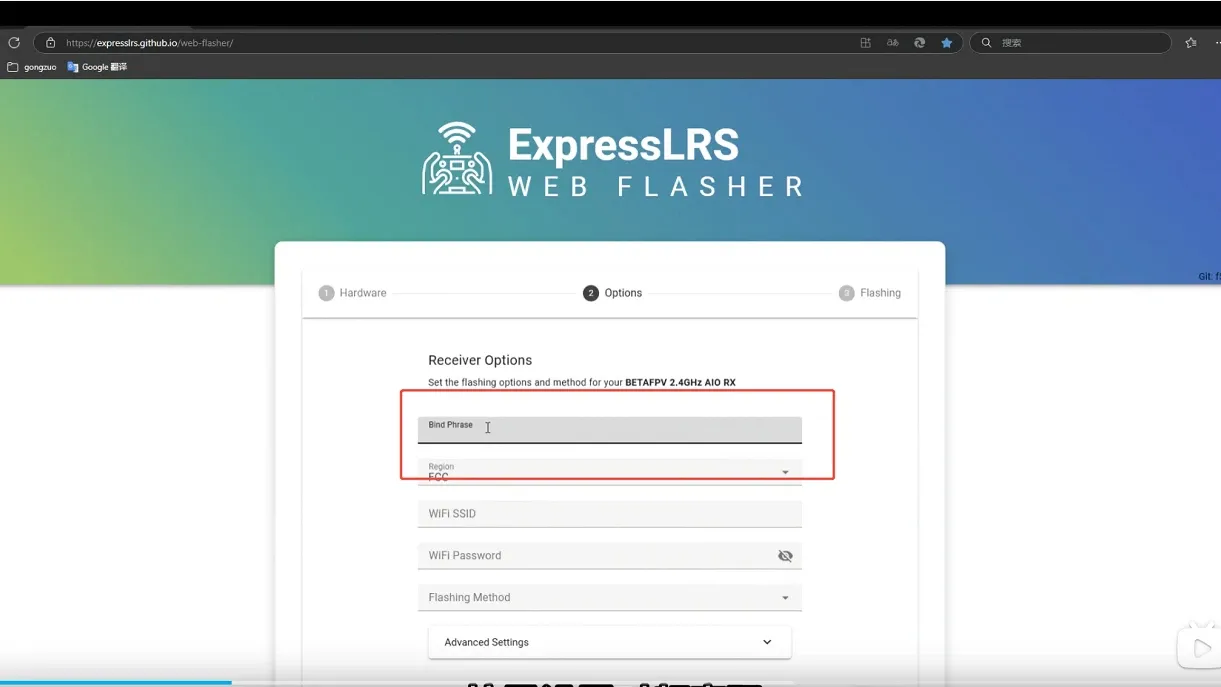
Step 3: Set the same Bind Phrase
Enter exactly the same Bind Phrase on the Pocket’s internal ELRS module and the receiver.
The phrase is case-sensitive. Even a small difference creates a different binding ID.
Step 4: Confirm firmware compatibility
Keep the transmitter and receiver on the same ExpressLRS major firmware generation whenever possible. For example, use 3.x with 3.x or 4.x with 4.x rather than mixing major releases.
Also confirm:
- 2.4GHz TX with 2.4GHz RX
- FCC with FCC
- EU CE/LBT with the corresponding legal regional configuration
Step 5: Restart both devices
Turn on the Pocket, then power the drone. They should connect automatically within a few seconds.
A packet-rate difference is usually not the first reason a properly configured ELRS system fails to bind. Check frequency, firmware, domain, Bind Phrase, and Model Match first.
For full binding options, see the official ExpressLRS binding guide.
How to Bind from the Radiomaster Pocket Tools Tab
Use this method when you are not using a Bind Phrase or need to initiate manual binding.
- Remove the drone’s propellers.
- Power on the Radiomaster Pocket.
- Long-press SYS.
- Open the Tools tab.
- Select ExpressLRS.
- Put the receiver into bind mode.
- Scroll to [Bind] in the Lua script.
- Press the scroll wheel to start binding.
- Wait for the receiver status LED to change.
- Restart the receiver and confirm the connection.
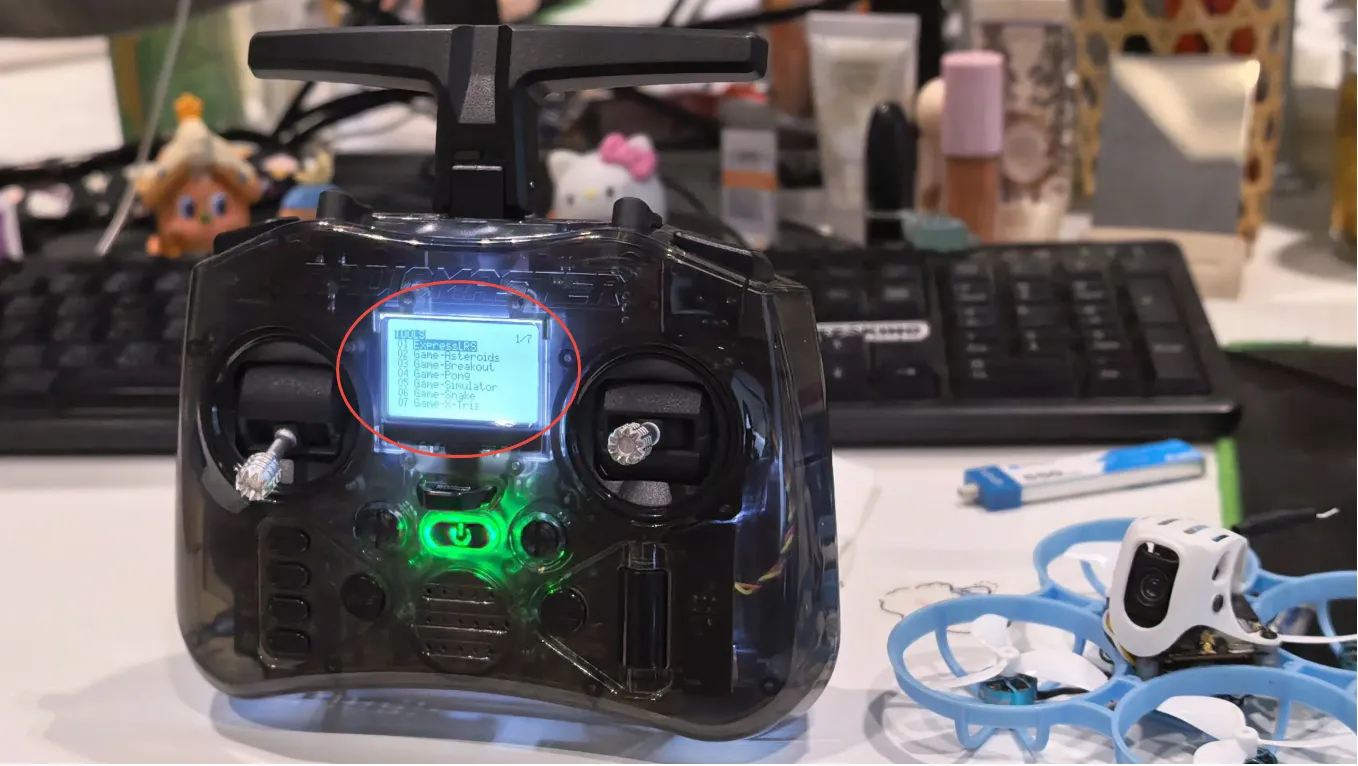
The Radiomaster Pocket Tools tab contains Lua tools stored on the radio’s SD card. If ExpressLRS is missing or stuck loading, check:
- whether you own the ELRS version
- whether Internal RF is enabled
- whether the correct ELRS Lua script is installed
- whether the SD card content matches EdgeTX
- whether the internal ELRS module firmware is working
The official ExpressLRS documentation explains the Lua controls and Model Match behavior in more detail. ExpressLRS Lua Script guide
Binding Radiomaster Pocket to FPV Drone Manual
There are several ways to put an ELRS receiver into bind mode.
Three-power-cycle method
For supported receivers:
- Power the receiver.
- Disconnect power.
- Repeat this process three times.
- Leave it powered on after the third cycle.
- Open SYS > Tools > ExpressLRS.
- Select [Bind].
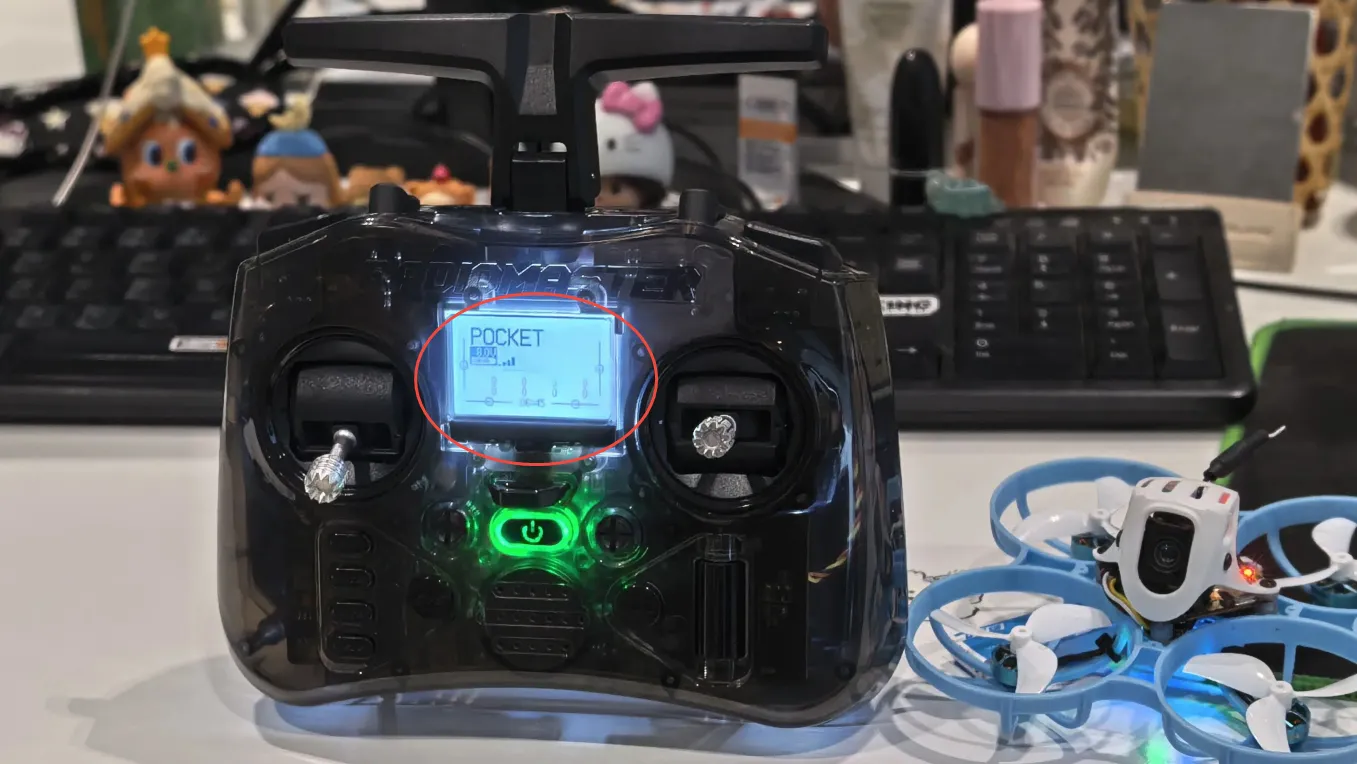
Do not cycle too quickly. Give the receiver time to boot during each power cycle.
Receiver button method
Some receivers(TBS) have a bind or boot button:
- Apply power.
- Hold the receiver button.
- Release the button according to the receiver’s instructions.
- Start [Bind] from the TBS Agent Lite Lua script.
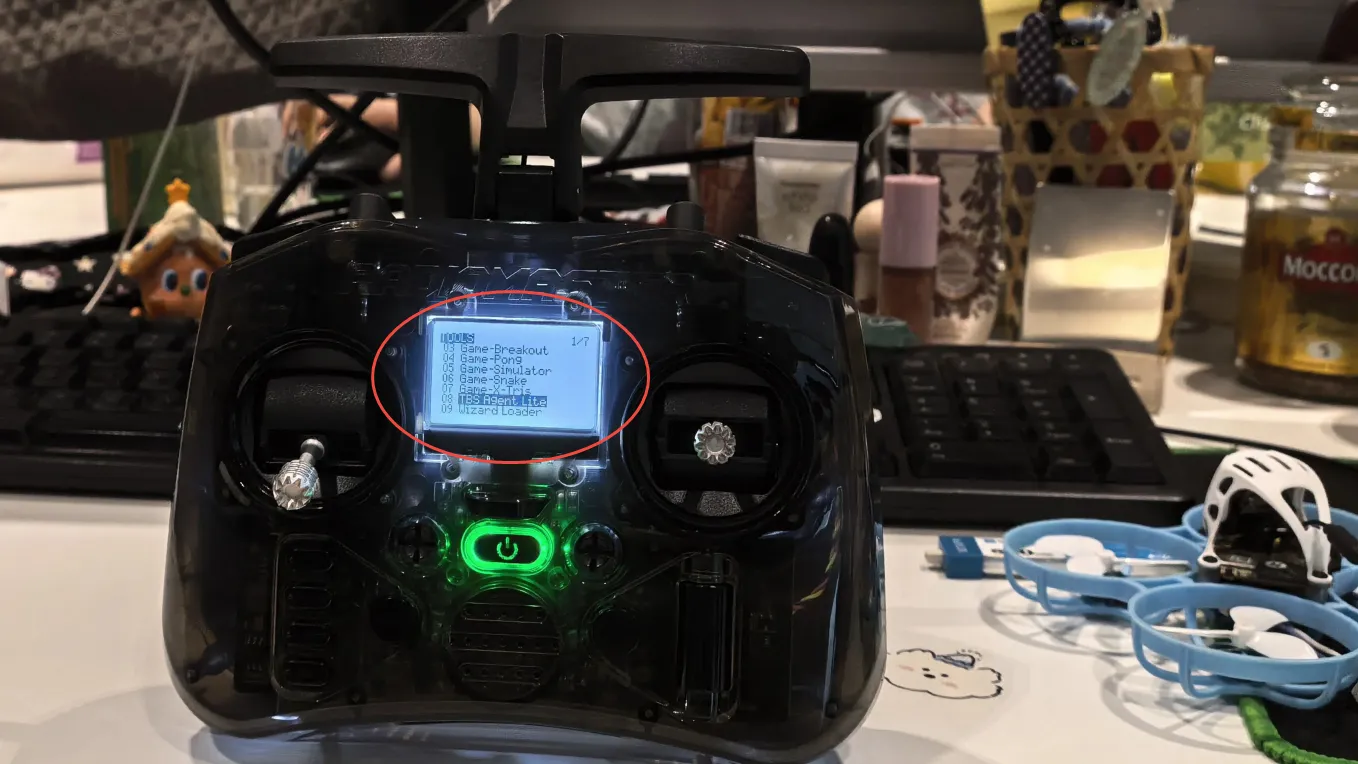
Button behavior varies by receiver, so check the manufacturer’s instructions before assuming the button activates bind mode.
Betaflight Bind Receiver method
Newer compatible Betaflight versions provide a Bind Receiver button. ExpressLRS documentation lists this option for Betaflight 4.5.0 or newer with Betaflight Configurator 10.10 or newer.
You can also use the following CLI command on supported Betaflight versions:
bind_rx
Some older receivers flashed with a Bind Phrase may not respond to traditional manual binding in the same way. If manual binding does nothing, check the receiver’s stored Bind Phrase and firmware before repeatedly power-cycling it.
Binding Pocket ELRS to SPI ELRS Whoops
SPI ELRS receivers are integrated into the flight controller. They do not have a separate receiver firmware that you flash through ExpressLRS Configurator.
Instead, their ELRS implementation comes from Betaflight.
Important compatibility rules:
- Betaflight 4.3.1 and older official SPI ELRS builds work with ExpressLRS 2.x.
- ExpressLRS 3.x SPI compatibility requires Betaflight 4.4.0 or newer.
- The Betaflight Receiver Mode must be set to SPI RX.
- The SPI Receiver Provider must be set to EXPRESSLRS.
To bind a modern SPI ELRS whoop:
- Check the Whoop’s Betaflight version.
- Check the Pocket’s ExpressLRS version.
- Open Betaflight Configurator.
- Select SPI RX as the receiver mode.
- Select EXPRESSLRS as the provider.
- Configure a matching Bind Phrase where supported.
- Save and reboot.
- Power-cycle the whoop and Pocket.
- Verify stick movement in the Receiver tab.
This version relationship is documented in the official ExpressLRS SPI receiver guide.
Method 2: Binding Multi-Protocol (FrSky / CC2500 versions)
If you own the Radiomaster Pocket CC2500, the ELRS instructions above do not apply to its internal module.
To bind a compatible FrSky receiver:
- Create or select a model on the Pocket.
- Open Model Setup.
- Enable Internal RF.
- Select the correct supported protocol and subtype.
- Start binding from the radio.
- Put the receiver into bind mode.
- Restart both devices after binding.
- Remove the props and check Betaflight receiver input.
The exact protocol may depend on the receiver firmware, region, and whether the receiver uses D8, D16, FCC, or LBT firmware.
Can Radiomaster Pocket Bind to FrSky or SPI FrSky Receivers?
The Pocket CC2500 version can bind to certain compatible FrSky-style receivers. The Pocket ELRS version cannot directly bind to FrSky using its internal module.
SPI FrSky whoops can be especially difficult because:
- they may support only specific FrSky variants
- the Betaflight SPI provider must be correct
- FCC and LBT firmware may not match
- older whoops may use discontinued or legacy protocols
If you are starting a new FPV fleet, ELRS is generally easier to maintain than a mixture of older FrSky protocols.
Can Radiomaster Pocket Bind to Crossfire?
Neither internal Pocket version can directly bind to a Crossfire receiver.
- Pocket ELRS to Crossfire RX: no
- Pocket CC2500 to Crossfire RX: no
- Pocket with an external Crossfire module: yes
The Pocket has a module bay, so a compatible external module can add another radio protocol. You still need a receiver matching that module.
How to Know If the Radiomaster Pocket Is Bound
Receiver LEDs differ between manufacturers, so use the receiver manual to interpret the exact blink pattern.
General connection signs include:
- the receiver LED changes from its disconnected pattern
- the Pocket stops announcing repeated telemetry loss
- telemetry data appears
- link quality becomes available
- Betaflight shows channel movement
The most reliable test is:
- Remove all propellers.
- Connect the drone to Betaflight Configurator.
- Open the Receiver tab.
- Move throttle, roll, pitch, and yaw.
- Test every assigned switch.
- Confirm that the channel bars respond correctly.
If the channels move in Betaflight, the control link is bound and passing receiver data. If the quad still will not arm, troubleshoot the arming configuration rather than binding again.
Also remember that Betaflight normally blocks arming while connected through USB/MSP. Disconnect USB before testing normal arming, and keep the props removed.
Betaflight Setup After Binding
For a separate UART-based ELRS receiver
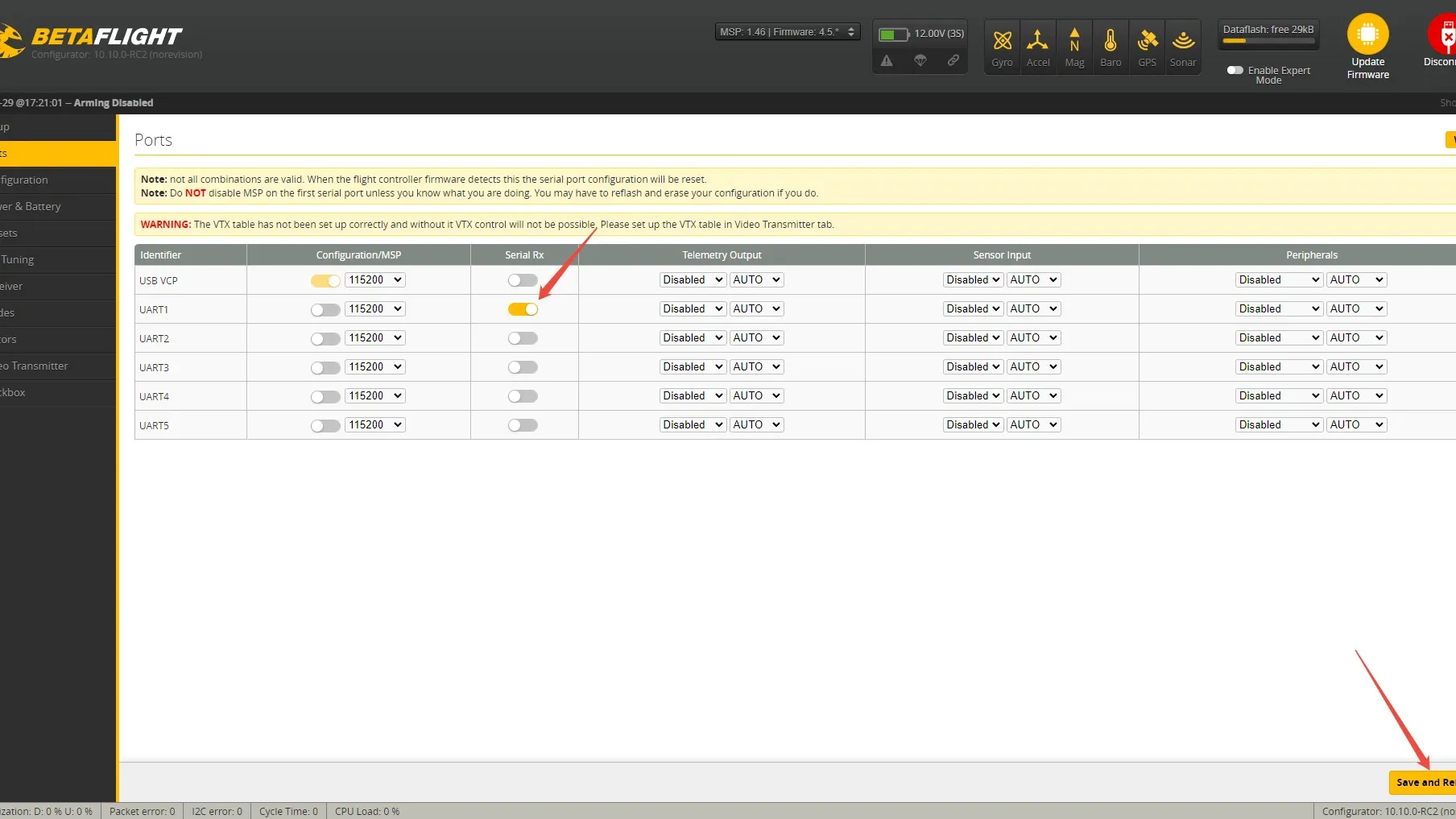
- Open the Ports tab.
- Enable Serial RX on the UART connected to the receiver.
- Save and reboot.
- Open the Receiver settings.
- Select Serial (via UART) as the receiver mode.
- Select CRSF as the serial receiver provider.
- Save and reboot.
- Open the Receiver tab and check channel movement.
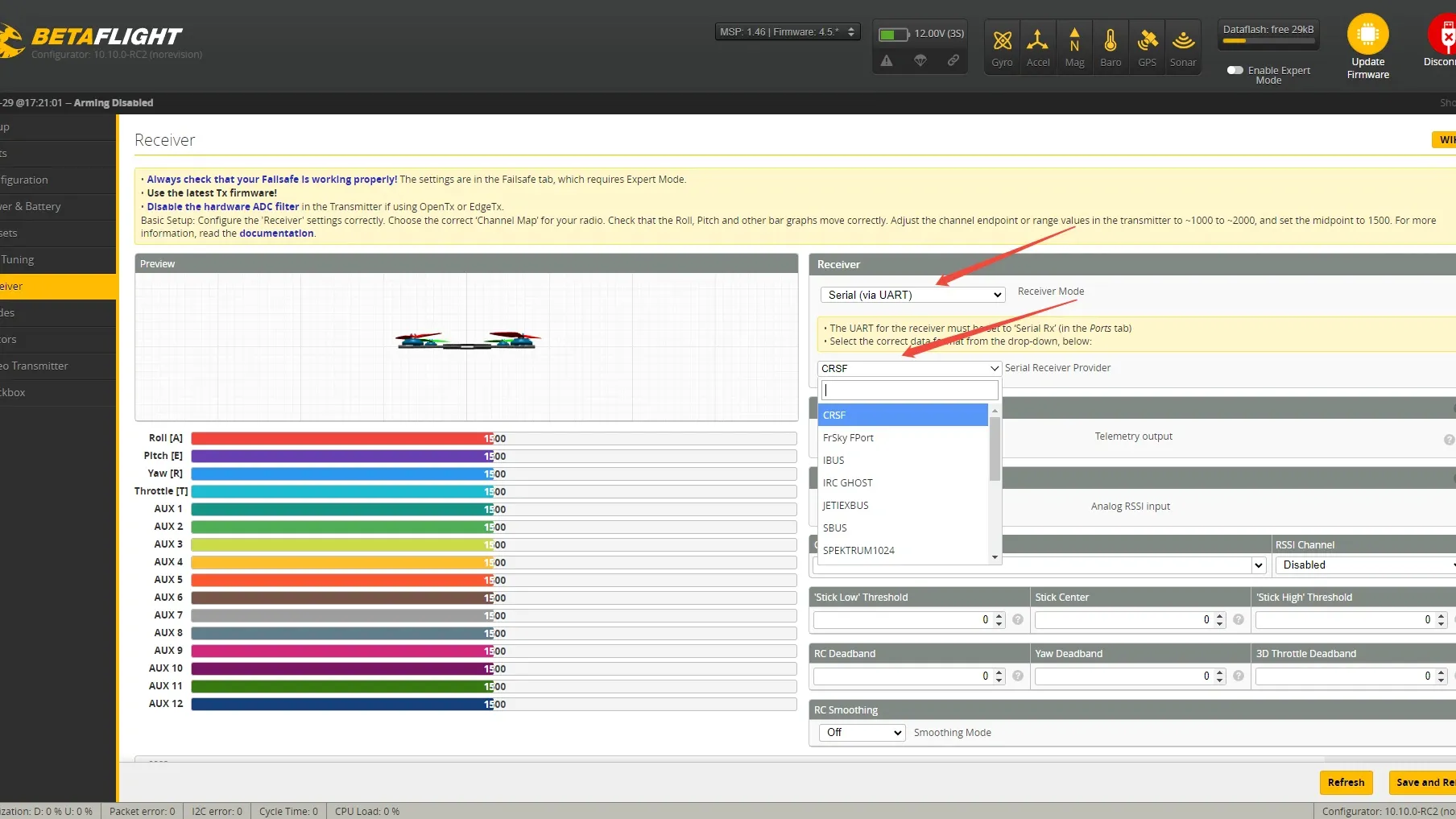
ELRS uses CRSF as its serial communication protocol in Betaflight.
Check channel mapping
Move one stick at a time and confirm:
- roll controls Roll
- pitch controls Pitch
- throttle controls Throttle
- yaw controls Yaw
Common channel maps include:
- AETR1234
- TAER1234
Use the channel map that makes the on-screen controls match your radio.
Check endpoints and center values
Typical target values are approximately:
- minimum: 1000
- center: 1500
- maximum: 2000
Small differences are normal, but badly incorrect values can affect arming or control response.
Set switches and failsafe
At minimum, configure:
- ARM
- BEEPER
- optional PREARM
Then check failsafe with the props removed:
- Power the radio and drone.
- Confirm receiver input.
- Turn off the radio.
- Confirm Betaflight detects signal loss and does not continue accepting stale control commands.
Why is my Radiomaster pocket not binding?
1. Wrong Pocket version
A Pocket CC2500 cannot communicate with an ELRS receiver through its internal module.
If the ExpressLRS Lua script stays on Loading…, verify the label on the radio and the exact version you purchased.
2. Wrong frequency band
ELRS 2.4GHz and ELRS 900MHz do not bind to each other.
Both devices say “ELRS” is not enough. The frequency must also match.
3. Firmware mismatch
Check the ELRS firmware on both TX and RX. Keep both devices on compatible releases, preferably the same major version.
4. Bind Phrase mismatch
Re-enter the phrase carefully. It is case-sensitive, and spaces or spelling differences produce different binding identifiers.
5. FCC or EU domain mismatch
The transmitter and receiver must use matching regulatory configurations.
6. Model Match is blocking the connection
Model Match can deliberately prevent a bound receiver from connecting to the wrong radio model.
For initial troubleshooting, turn Model Match off unless you intentionally configured matching receiver IDs.
7. Receiver is not in bind mode
Check the receiver LED pattern and instructions. The three-power-cycle method does not behave identically on every receiver.
8. Receiver has no power
Use a multimeter to confirm voltage at the receiver. An FC can connect to Betaflight while the receiver remains unpowered because USB does not power every 5V rail on every board.
9. Receiver wiring is incorrect
For a UART ELRS receiver:
- receiver TX connects to FC RX
- receiver RX connects to FC TX
- 5V connects to the correct voltage pad
- ground connects to ground
Inspect for weak solder joints, bridges, and broken wires.
10. Betaflight is configured incorrectly
If the receiver is connected but Betaflight shows no channel movement, check:
- correct UART
- Serial RX enabled
- Serial receiver mode
- CRSF provider
- RX/TX wiring
A connected receiver LED with no Betaflight input is often a configuration or wiring issue, not a binding issue.
11. The receiver may be damaged
If the radio binds successfully to another ELRS receiver, but the problem receiver never connects after correct flashing and wiring, test or replace the receiver.
Community troubleshooting repeatedly shows that a damaged or incorrectly flashed receiver can waste hours after every software setting has already been checked.
My Recommended Setup for New FPV Pilots
For a new FPV pilot, I recommend:
- Radiomaster Pocket ELRS 2.4GHz
- an FPV drone with an ELRS 2.4GHz receiver
- a shared Bind Phrase
- matching TX and RX firmware
- Model Match off until the basic setup works
- CRSF receiver configuration in Betaflight
- a complete failsafe test before installing props
The CC2500 Pocket still has value for pilots with older compatible receivers, but the ELRS version is the more practical choice for a new FPV drone.
Before flying, confirm:
- Pocket version is correct.
- Receiver protocol matches.
- ELRS frequency bands match.
- TX and RX firmware are compatible.
- Regulatory domains match.
- Bind Phrases match.
- Model Match is configured correctly.
- Receiver has power.
- Betaflight UART is correct.
- Serial RX is enabled.
- Receiver provider is CRSF for UART ELRS.
- Stick and switch inputs work.
- ARM and BEEPER switches are assigned.
- Failsafe works.
- Props remain removed until every check passes.
FAQ
How do I bind Radiomaster Pocket ELRS to an FPV drone?
Set the same Bind Phrase on the Pocket’s internal ELRS module and the drone’s ELRS receiver, confirm compatible firmware and frequency, then restart both devices. You can also use SYS > Tools > ExpressLRS > Bind for manual binding.
Where is the Radiomaster Pocket Tools tab?
Long-press the SYS button, navigate to the Tools tab, and select the ExpressLRS Lua script.
Why is my Radiomaster Pocket ELRS stuck on Loading?
The most common reason is owning the CC2500 version instead of the ELRS version. Other causes include an incorrect Lua script, mismatched SD card content, disabled Internal RF, or internal module firmware problems.
Can Radiomaster Pocket ELRS bind to FrSky?
Not through its internal ELRS module. You need the CC2500 Pocket version or a compatible external multi-protocol module.
Can Radiomaster Pocket bind to Crossfire?
Only with a compatible external Crossfire module. Neither the internal ELRS nor CC2500 module binds directly to Crossfire receivers.
Do I need to update Radiomaster Pocket firmware before binding?
Not always. Update only after checking the Pocket version, ELRS frequency, TX/RX firmware compatibility, Bind Phrase, regulatory domain, and Model Match.
Why is the receiver connected but Betaflight shows no stick movement?
Check the receiver wiring, UART selection, Serial RX setting, receiver mode, and CRSF provider. A connected RF link does not guarantee that the flight controller is receiving channel data.
Why will my FPV drone not arm after binding?
Check Betaflight arming-disable flags, ARM mode assignment, channel endpoints, throttle position, failsafe, accelerometer limits, and whether USB is still connected. Binding and arming are separate stages.